For sole traders and small trade businesses · VAT fields on invoices
Job Management Software for Tradesmen
Know what's quoted, what's booked and what's owed.
Job management software for tradesmen does not need a dispatch board when the business is you and a van. Log the enquiry, keep the address and notes on the job, send the quote, book the visit and invoice the finished work from the same place. Next up shows which quotes need chasing and which jobs are ready to bill.
Already have an account? Open Jobs
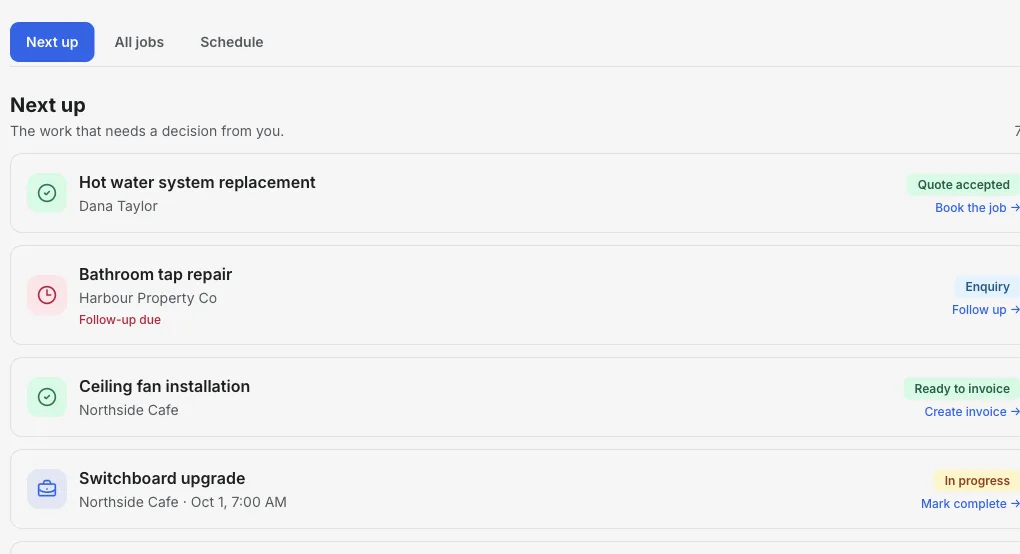
Inside the Jobs workspace
Your next action, not a wall of jobs.
Next up surfaces the quote to follow up, the visit coming up and the finished job that still needs an invoice. Each opens to the full job record.
- 01
Two fields to start
Job name and customer. Everything else can be added when you know it.
- 02
Follow-ups that surface
Set a follow-up date on a quoted job and it appears in Next up when it is due.
- 03
Invoice from the job
The customer and site carry over, so billing takes a minute after the work.
Product walkthrough
See a job added, booked and ready to bill
This 18-second recording uses fictional sample data: a job is added, given a visit time and surfaced when it is ready to invoice.
Demo data · no sound · play when you are ready
What a one-van business actually needs
Enquiries that do not get lost
Every call or message becomes a job with the customer, address and notes, even before you have priced it.
Quotes linked to the work
Send a quote from the job. The customer can accept it online, and converting it to an invoice updates the job.
A simple diary
Book visits on jobs and see the week by day in the Schedule view.
Chase on time
Follow-up dates bring quiet quotes back to the top of Next up.
VAT when you need it
Add your VAT number and apply VAT when registered. Show bank details with sort code and account number for payment.
Works on your phone's browser
Jobs runs in a mobile browser. The iPhone app currently covers invoicing rather than Jobs.
How it works
-
1
Log the enquiry
Create the job with the customer and address while you are on the call.
-
2
Quote, chase, book
Send the quote, set a follow-up date, and book the visit once it is accepted.
-
3
Finish and get paid
Mark the work complete, create the invoice from the job and track payment.
A small bathroom repair, start to finish
How one job stays in one place from first message to payment.
- Enquiry
- A customer messages about cracked tiles and a leaking shower seal. Log it as a job with the address.
- Quote
- Send the quote and set a follow-up for three days later.
- Visit
- The customer accepts. Book Monday morning on the job.
- Invoice
- Invoice the finished work with VAT if registered and your bank details.
Takeaway: When the job, quote and invoice are connected, the question 'did I ever bill that?' answers itself.
Put your next enquiry on a job
Add the customer now and quote it when you are ready.
Start with JobsFrequently asked questions
Who is this job management software for?
Sole traders and small trade businesses that want enquiries, quotes, visits and invoices in one place without the setup of a multi-user field service system.
Does it support VAT?
Yes. Set your business country to the United Kingdom to add a VAT number and apply VAT when you are VAT-registered.
How is it different from Tradify, ServiceM8 or Powered Now?
Those tools add staff accounts, dispatch, timesheets and more. InvoiceSonic Jobs is deliberately simpler: one person's job list, schedule, quotes and invoices. If you manage a team, a multi-user tool will fit better.
Can I try Jobs before paying?
You can create an account and open Jobs. Free-plan invoice limits apply when you create invoices; see the pricing page for current limits and Pro features.
Related tools & guides
Job management software · Job management for plumbers · Electrician job management · Job management for tradies (AU)