A day-by-day schedule connected to your jobs
Job Scheduling Software
Know which visit is next—and what it is for.
A time on a calendar is easy to forget when the address, client and scope live elsewhere. Put the appointment on the job, see upcoming visits grouped by day and open the work record before you leave. When plans change, update the same job.
Already have an account? Open Jobs
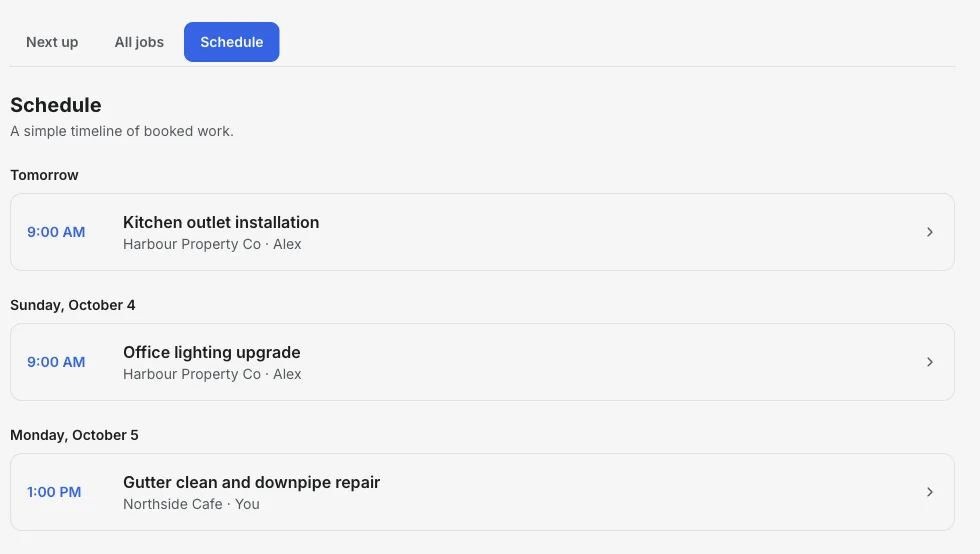
Inside the Schedule view
Each visit opens the work behind it.
The Schedule view groups appointments by day. A time is more useful when one click also brings up the client, site address, notes and next job action.
- 01
Book a visit
Choose a start time on the job. Add an end time, assignee label and site address when useful.
- 02
Scan the day
See each booked job with its time, client and assignee in a simple timeline.
- 03
Change and bill
Reschedule on the job. After the visit, mark the work complete and create its invoice.
Product walkthrough
See scheduling in action
The short Jobs recording shows a sample visit being booked and appearing in the day-by-day schedule.
Demo data · no sound · play when you are ready
A simple plan for booked work
Day-by-day schedule
See upcoming appointments grouped by day, with the job and client ready to open.
The address and notes stay close
Keep the site and job notes on the work record so a scheduled visit has context.
Change plans without losing work
Edit an appointment on its job when a client needs another time.
See unscheduled work
Use the job list and Next up view to find requests that still need an appointment or quote.
Bill the visit
Create an invoice from the job after the work is done, with the client already attached.
Clear scope
Built for straightforward appointment planning. Shared crew calendars, route optimisation and automated dispatch are not part of this workflow.
How it works
-
1
Create the job
Save the client, site and reason for the visit.
-
2
Set the appointment
Choose the date and time, then check the Schedule view for your upcoming work.
-
3
Close the loop
Open the same job after the visit, update its status and prepare the invoice.
Monday's schedule, with the work attached
A simple appointment plan for a one-person service business.
- 9:00 am
- Open the first job to confirm the client, location and quoted work.
- 1:00 pm
- Review the second visit's notes before leaving for the property.
- After work
- Mark the completed job and create its invoice while the details are fresh.
Takeaway: The appointment is part of the job workflow, so the information needed to quote and bill remains in one place.
Explore job workflows
Choose the workflow that matches your work.
Scheduling software for plumbers →
Plan call-outs and keep the job address close.
Cleaning business scheduling →
Organise visits and bill completed cleans.
HVAC scheduling software →
Service calls and installs by day, with unit notes on the job.
Landscaping scheduling software →
Book installs and cleanups and move them when it rains.
Handyman business software →
A day of small jobs, each quoted, booked and invoiced.
Junk removal software →
Pickups by day, quoted by load.
Frequently asked questions
Can I schedule jobs and invoice in the same app?
Yes. InvoiceSonic connects an appointment to its job record and lets you create a quote or invoice from that job.
Does it automatically assign staff or optimise routes?
No. You can store an assignee label on a job, but InvoiceSonic does not provide staff accounts, dispatch notifications or route optimisation.
Can I reschedule a visit?
Yes. Open the job and update its appointment date or time; the Schedule view reflects the new plan.
Can customers book their own appointments?
No. The current workflow is for you to set appointments for the jobs you manage.
Related tools & guides
Job management software · Scheduling software for plumbers · Cleaning business scheduling