Free Online Invoice Generator
Our free online invoice generator creates a professional, correctly totalled invoice you can preview live and download as a PDF in about a minute. GST, VAT and sales tax for your country, no account needed for your first invoice.
Create your invoice online
More free tools: GST calculator · Self employment tax calculator ·Markup calculator · Profit margin · Card fee calculator · Statement template · Quote template · Receipt template
How to use the invoice generator
An invoice generator is a free online tool that turns your business details, your client and a list of line items into a finished, correctly totalled invoice you can download as a PDF. This guide covers how to make and send an invoice with the generator above, what every invoice needs to include, and when a generator beats a Word or Excel template.
How to make an invoice with the invoice generator
Six steps take you from a blank form to a finished PDF. The first invoice usually takes a couple of minutes; once your details are saved, the next one takes seconds.
-
1
Choose your country
The country sets your currency, date format, tax label (GST, VAT or sales tax) and the business ID field — ABN in Australia, NZBN in New Zealand, VAT number in the UK. Pick it first so everything below is labelled correctly.
-
2
Add your business details
Enter your business name, and your address, email and phone if you want clients to reach you from the invoice. Add a trading name if you trade under a different name, and your tax ID if you are registered.
-
3
Add who you are billing
Fill in the “Bill To” section with your client’s name and, if you have them, their email, phone and billing address. Add a separate service address if the work happened somewhere else.
-
4
Set the invoice number and dates
The generator suggests the next invoice number; overwrite it to continue your existing sequence. Set the issue date and the due date. Add a purchase order number or job reference if your client asked for one — invoices without them are a common reason for late payment from larger businesses.
-
5
Add your line items
Add one line per product, service or block of hours, with a description, quantity and rate. The generator multiplies each line, adds the subtotal, applies tax if you turn it on and shows the total. If you took a deposit or were part-paid, enter the amount already paid and the balance due updates.
-
6
Add payment terms and download
Write how and when you want to be paid in the payment terms box — for example “Payment due within 14 days. Bank transfer to BSB 000-000, Acc 12345678.” Check the live preview, then download the PDF.
How to send an invoice
Once the invoice is made, send it the same day — invoices sent promptly are paid sooner. Pick whichever of these suits your client.
-
1
Email the PDF
Attach the downloaded PDF to an email. Put the invoice number, amount and due date in the subject line — “Invoice INV-0042 – $1,320 due 25 September” — so your client can find it and approve it without opening anything.
-
2
Send a tracked link
With a free account you can send the invoice from InvoiceSonic as a link and get notified when your client opens it (included on the free plan). Knowing it was opened tells you whether a late payment is a missed email or a slow payer.
-
3
Print it or hand it over
The PDF prints cleanly, so you can hand a paper invoice to a client on site. Keep a copy either way — most tax authorities expect you to keep invoices for five to seven years.
-
4
Follow up if it is not paid
Send a polite reminder a day or two after the due date, and restate the amount, the invoice number and how to pay.
What to put on an invoice: the 9 essential elements
The generator has a field for each of these nine elements. The sample below is an Australian tax invoice with each one numbered; the rules for other countries are noted where they differ.
1Tax Invoice
2Harbour Plumbing
12 Wharf St, Newcastle NSW 2300
accounts@harbourplumbing.com.au
ABN 12 345 678 901
3Bill to
Sam Carter
48 Ridge Rd, Merewether NSW 2291
sam.carter@example.com
4Invoice no. INV-0042
5Issued 11 Sep 2026 · Due 25 Sep 2026
| 6Description | Qty | Rate | Amount |
|---|---|---|---|
| Call-out and diagnosis | 1 | $120.00 | $120.00 |
| Replace hot water system (labour, hrs) | 4 | $110.00 | $440.00 |
| Rheem 250L electric hot water unit | 1 | $640.00 | $640.00 |
Subtotal$1,200.00
7GST (10%)$120.00
8Total due$1,320.00
9Payment due within 14 days. Bank transfer to BSB 000-000, Acc 12345678, ref INV-0042.
-
1
The word “Invoice” (or “Tax Invoice”)
Put the document type at the top so nobody confuses it with a quote or receipt. In Australia, a GST-registered business must title it “Tax Invoice” for sales over $82.50 (GST included) so the client can claim the GST back.
-
2
Your business details
Your business name and how to contact you, plus your tax identifier if you are registered: ABN in Australia, VAT number in the UK, GST number in New Zealand. In the US there is no federal requirement to show an EIN, but many businesses do.
-
3
Your client’s details
The client’s name and contact details. For business clients, use the legal entity name their accounts team will recognise — invoices addressed to a person who has since left are a classic cause of payment delays.
-
4
A unique invoice number
Number invoices sequentially without gaps (INV-0041, INV-0042…). A unique number lets you and your client refer to one invoice without ambiguity and keeps your records audit-ready.
-
5
Issue date and due date
The issue date is when you raise the invoice; the due date is when payment is expected. Writing an actual date (“25 Sep 2026”) gets paid faster than “Net 14”, because nobody has to do the maths.
-
6
Itemised line items
One line per product or service, each with a clear description, quantity and rate. Itemising is what separates a professional invoice from a bill that gets queried — the client can see exactly what they are paying for.
-
7
Tax shown on its own line
If you charge GST, VAT or sales tax, show it as a separate line under the subtotal with the rate. If you are not registered, leave tax off — never charge tax you are not registered to collect.
-
8
The total and balance due
The total including tax, and the balance due if a deposit or part-payment has already been made. Make the number the client must pay the most prominent figure on the page.
-
9
Payment terms and how to pay
When payment is due and every way to pay — bank details, PayID, a card payment link. The easier it is to pay, the faster you are paid. Add a late-payment policy here if you have one.
Invoice generator vs Word, Excel and accounting software
You can make an invoice four ways. A generator is the fastest for occasional invoices; accounting software earns its subscription once you are reconciling bank feeds and paying staff.
| Invoice generator | Word or Google Docs template | Excel or Sheets spreadsheet | Accounting software | |
|---|---|---|---|---|
| Maths and tax | Automatic | Manual — you type every total | Formulas you build and maintain | Automatic |
| Invoice numbering | Suggested for you | Manual — easy to repeat a number | Manual | Automatic |
| Tax label and ID by country | Set by the country you pick | Whatever the template shipped with | Whatever you type | Set once in settings |
| Output | Clean PDF | PDF if you export it; layout can shift | PDF export; often breaks across pages | PDF, link or email |
| Setup time | None | Find and edit a template | Build or adapt a sheet | Account, onboarding, bank feeds |
| Cost | Free | Free | Free | Monthly subscription |
| Best for | One-off and occasional invoices | Businesses that already use a fixed layout | People who track everything in one sheet | Businesses reconciling books and payroll |
The problems with invoicing from a template
- ✕You re-type your business details and your client’s details on every new invoice.
- ✕A copied-and-edited template keeps last month’s dates, number or line items if you miss one.
- ✕Totals and tax are only as right as your arithmetic or your formulas.
- ✕Keeping invoice numbers unique across files and folders is up to you.
- ✕Exporting to PDF can move columns, fonts and page breaks.
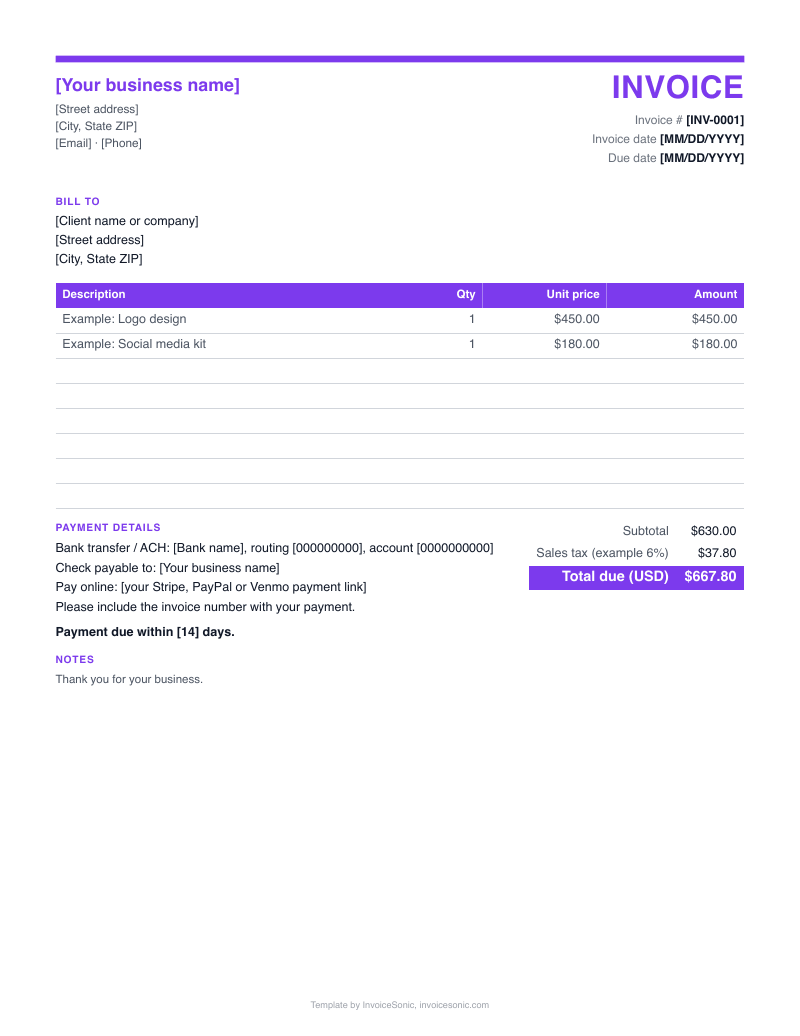
Prefer a template anyway? We have free ones: Invoice template for Word · Invoice template for Excel · Invoice template for Google Docs · Blank invoice template
Why use an invoice generator
No re-typing
Save your business details and clients with a free account and the next invoice is a few clicks: pick the client, add the lines, download.
Correct totals, every time
Line totals, subtotal, tax, amount already paid and balance due are calculated for you, so a typo never becomes a short-paid invoice.
The right tax fields for your country
GST, VAT or sales tax, with the matching business ID field and currency. Australian invoices get GST and an ABN field, US invoices get sales tax and an EIN field, and UK and EU invoices get VAT and a VAT number.
A PDF that looks the same everywhere
PDFs render identically on your client’s phone, laptop and printer, so the layout you checked in the live preview is the one they see.
Deposits and part-payments
Ask for a deposit up front or record an amount already paid, and the invoice shows the balance still owing.
Quotes and receipts from the same details
The same generator makes quotes, estimates and receipts, so a job can go from quote to invoice to receipt without re-entering anything.
Who uses an invoice generator
Anyone who bills for work uses an invoice generator, but it is most useful to people who invoice between jobs rather than from a desk — trades on site, freelancers between projects, and sole traders who do their own books.
- Invoices for plumbers →
- Invoices for electricians →
- Invoices for cleaners →
- Invoices for mechanics →
- Invoices for contractors →
- Invoices for photographers →
- Invoices for graphic designers →
- Invoices for web designers →
- Invoices for software developers →
- Invoices for copywriters →
- Invoices for consultants →
- Invoices for tutors →
- Invoices for personal trainers →
- Invoices for ndis providers →
Invoice generator by country
Country versions of the invoice generator with the right tax labels, ID fields and currency:
Invoice templates for common situations
Templates and guides for specific billing situations:
Invoice generator — frequently asked questions
Can ChatGPT generate an invoice?
ChatGPT can draft the wording of an invoice, but it does not reliably calculate tax, keep your invoice numbers in sequence, or give you a PDF your client can pay from. An invoice generator does all three in about a minute: it totals the line items and tax for your country, numbers the invoice, and downloads a ready-to-send PDF.
Is there a free Google invoice tool?
Google does not make an invoicing app. The free options are invoice templates in Google Docs and Google Sheets, which you fill in by hand: you type the totals and tax yourself, track invoice numbers yourself, and export to PDF. A free invoice generator does the maths and the numbering for you and keeps the layout consistent.
Is this invoice generator free?
Yes. Your first invoice is free with no account and no card — we ask for an email address once so we can send you a copy of the PDF. After that, a free account gives you 3 invoices a month, still with no card, and remembers your business details and clients. There is no watermark on free invoices.
Do I need to sign up to use the invoice generator?
No. You can fill in, preview and download your first invoice without creating an account. A free account is only needed for more invoices (3 a month) and to save your details, clients and past invoices.
How does the invoice generator work?
Choose your country, add your business and client details, then add line items with quantities and rates. The generator calculates the subtotal, tax, amount paid and balance due as you type and shows a live preview. When it looks right, download the PDF.
Can I see a sample invoice?
Yes — the annotated sample on this page shows a complete tax invoice with each required element numbered and explained. For more layouts, see our guide to what an invoice looks like.
Does the invoice generator add GST, VAT or sales tax?
Yes. Pick your country and switch tax on: the generator applies the matching label and rate (GST, VAT or sales tax), shows tax as its own line and includes it in the total. Leave it off if you are not registered.
Can I change the currency?
Yes. The currency follows the country you choose — Australian, New Zealand, US and Canadian dollars, pounds sterling, euros, Swiss francs and more — and is used on the preview and the PDF.
Can I ask for a deposit or record a part-payment?
Yes. Turn on “Ask for a deposit” to request part of the total up front, or enter an amount already paid and the invoice shows the balance still owing.
What file format does the invoice generator produce?
A PDF. It prints cleanly and looks the same on every device, so what you see in the preview is what your client receives.
How should I number my invoices?
Sequentially and without gaps — INV-0001, INV-0002 and so on. The generator suggests the next number; overwrite it to continue your existing sequence.
How do I make a tax invoice?
In Australia a tax invoice must show the words “Tax Invoice”, your ABN, the date, a description of what was sold, and the GST amount (or a statement that the price includes GST). Choose Australia in the generator to get the ABN and GST fields, and see our tax invoice template for a layout that covers every ATO requirement.
What should an invoice include?
An invoice number, the issue and due dates, your business details and tax ID if registered, your client’s details, itemised line items with quantity and rate, tax as a separate line, the total or balance due, and how to pay.
What is the difference between an invoice and a receipt?
An invoice asks for payment; a receipt confirms payment was made. You send the invoice before you are paid and the receipt after. The generator can make both.
Is an invoice generator better than an invoice template?
For most people, yes: a generator does the maths, suggests invoice numbers and sets the right tax fields, where a Word or Excel template leaves all of that to you. A template is still handy if you need a fixed layout you edit offline.
Can I save and edit my invoices?
With a free account, yes — invoices are saved so you can edit and re-download them, and your business details and clients are remembered. Without an account your draft stays in this browser only, so download the PDF before you leave.
How do clients pay the invoice?
However you tell them to. Put your bank details, PayID or a payment link in the payment terms and your client pays you directly — InvoiceSonic takes no cut of payments made that way.
Does the invoice generator work on my phone?
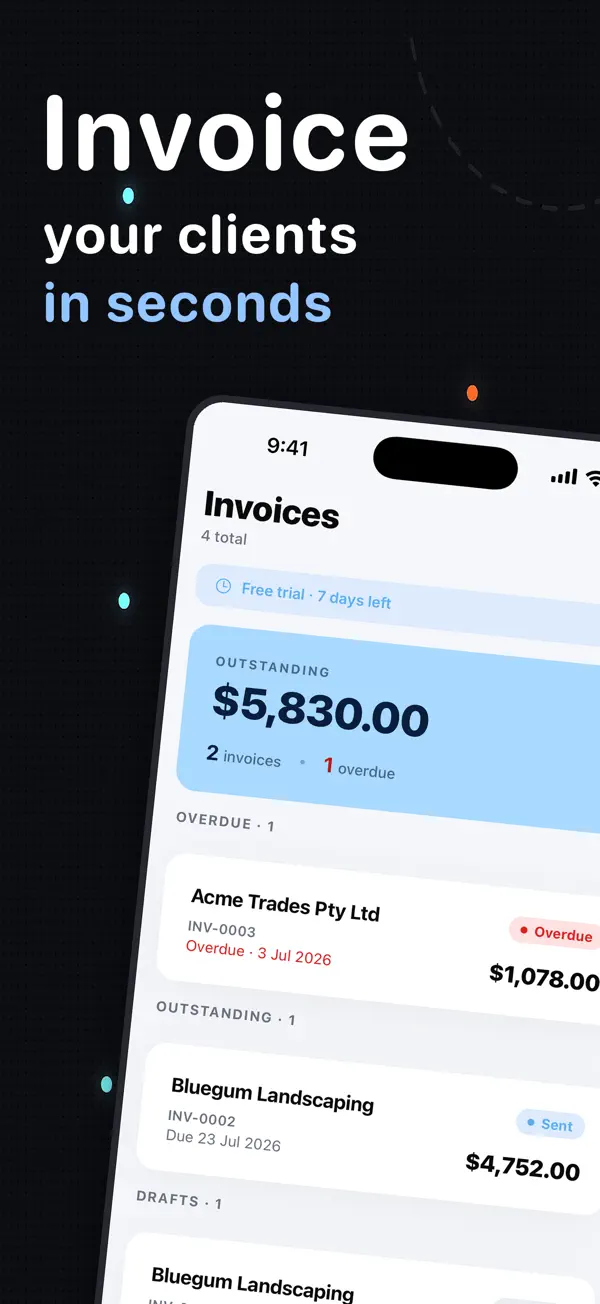
Yes. It runs in any modern browser on a phone, tablet or computer, with nothing to install. There is also an InvoiceSonic app for iPhone.
Invoicing every week? Save clients, track what is overdue and send reminders with the free InvoiceSonic invoicing app.